


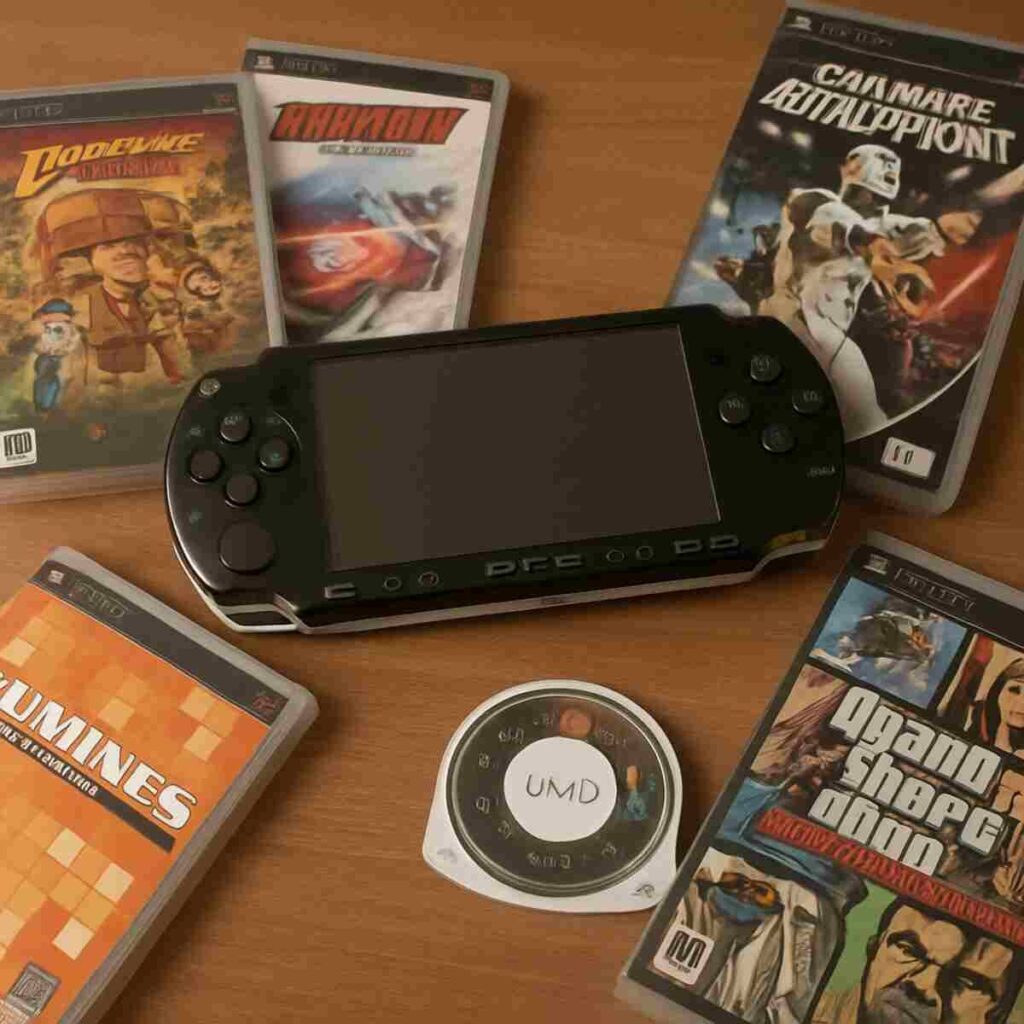
Hey there, fellow gaming enthusiast! So, you’re ready to explore the world of PSP modding, huh? Modding your PlayStation Portable (PSP) can open up a whole new world of possibilities, including playing PS2 games on your modded PSP. Excited? Let’s dive into this step-by-step guide to help you get started! To learn more, check out bugbountyrecon.com
Before we get into the nitty-gritty, you might be wondering why you should even consider modding your PSP. Well, here are a few reasons:
Play PS2 Games on Your PSP
One of the coolest benefits is the ability to play PS2 games on your PSP. While the PSP cannot directly emulate PS2 games due to hardware limitations, modding allows you to play PS1 games and certain ports or remakes that were released for PSP. This capability opens up a vast library of classic games, letting you experience nostalgic favorites on the go.
Customization of Your Gaming Experience
Modding allows you to customize your gaming experience, from themes to additional features. You can change the look and feel of your PSP interface, add new functionalities, and even tweak system settings that are otherwise inaccessible. This level of customization lets you tailor your PSP to fit your personal style and preferences, making your gaming sessions uniquely yours.
Access to Homebrew Games and Applications
You gain access to a plethora of homebrew games and applications created by the community. These are games and apps developed by independent creators and fans, offering a wide variety of content that you won’t find in official releases. From simple puzzle games to complex utilities, the homebrew community provides endless possibilities for entertainment and productivity.
Emulators for Retro Gaming
Want to play retro games from other consoles? Modding makes it possible! With emulators, you can enjoy titles from classic systems like the NES, SNES, and Sega Genesis, all on your PSP. This transforms your device into a versatile gaming machine capable of running games from multiple generations, ensuring you’ll never run out of games to play.
What You’ll Need
To get started, you’ll need a few things:
Essential Hardware
- A PSP (of course!): This is your primary device for modding and gaming.
- A Memory Stick Pro Duo: Necessary for storing games, emulators, and other modding software.
- A USB cable to connect your PSP to your computer: This is crucial for transferring files between your devices.
Computer Requirements
- A computer with internet access: You’ll need this to download the necessary software and tools for modding your PSP.
- Software tools: Programs like ImgBurn for converting game discs into ISO files.
Reliable Sources
- Trusted PSP modding sites: Ensure you download software from reputable sources to avoid malware and viruses.
- Community forums and guides: These can be invaluable for troubleshooting and learning more about advanced modding techniques.
Step 1: Check Your PSP Model
First things first, you need to identify your PSP model. This is crucial because different models have different modding requirements. Flip your PSP over and look for the model number. It should be something like PSP-1000, PSP-2000, or PSP-3000.
Identifying Your PSP Model
The model number determines the compatibility with various custom firmware (CFW) options. PSP-1000, also known as the “Fat” model, is one of the most versatile for modding. PSP-2000 and PSP-3000, known as “Slim” and “Bright,” respectively, have some limitations but are still highly moddable with the right CFW.
Understanding Model Differences
Knowing your model helps you understand the hardware capabilities and limitations. For instance, PSP-3000 has a brighter screen but may face more restrictions with certain homebrew applications compared to the PSP-1000. Understanding these differences can help you set realistic expectations about what you can achieve with your modded PSP.
Preparing for Model-Specific Requirements
Once you’ve identified your model, research any specific requirements or additional steps needed for modding. Some models require extra steps like a Pandora Battery or Magic Memory Stick, especially if you’re working with an older firmware version. Being prepared can save you time and prevent potential issues during the modding process.
Step 2: Update Your Firmware
Once you know your model, it’s time to update your PSP’s firmware. This ensures compatibility with the modding software. Connect your PSP to Wi-Fi and go to Settings > System Update. Follow the on-screen instructions to update to the latest firmware version.
Importance of Firmware Updates
Updating your firmware is crucial for ensuring your PSP runs smoothly with the latest features and security patches. Official updates from Sony can fix bugs and improve system performance. Ensuring your PSP is up-to-date can also resolve potential compatibility issues with certain games and applications.
Updating via Wi-Fi
Connect your PSP to a stable Wi-Fi network for a seamless update process. Navigate to System Update in the settings menu, and your PSP will automatically search for the latest firmware version. Follow the prompts to download and install the update. If Wi-Fi is unavailable, you can manually download the update file from Sony’s website and transfer it via USB.
Verifying the Update
After updating, verify that your PSP is running the correct firmware version by going to Settings > System Information. This step ensures the update was successful and that your device is ready for the modding process. If there are any issues, consider re-downloading the update or checking for troubleshooting tips online.
Step 3: Download the Necessary Software
Now, the fun begins! You’ll need to download a Custom Firmware (CFW) for your PSP. The most popular options are Pro CFW and Infinity CFW. Head over to a trusted PSP modding site and download the version compatible with your PSP model.
Choosing the Right Custom Firmware
Selecting the appropriate CFW is critical for a successful modding experience. Pro CFW is renowned for its user-friendly interface and compatibility with most PSP models. Infinity CFW is a permanent solution for some models, providing a seamless experience even after a reboot. Research the benefits and limitations of each to decide which fits your needs best.
Downloading from Trusted Sources
Ensure you download CFW from reputable websites to avoid malicious software. Look for community recommendations or official pages of popular modding groups. Verify the integrity of the files by checking MD5 or SHA-1 hashes if available. This step is crucial for maintaining the security and functionality of your PSP.
Preparing for Installation
Before installation, back up important data on your PSP to prevent potential data loss. Organize your downloaded files and ensure you have any additional tools or patches required for your CFW version. Having everything prepared and in place will streamline the installation process and minimize the risk of errors.
Step 4: Install the Custom Firmware
- Connect your PSP to the computer: Use the USB cable to connect your PSP to your computer and put your PSP in USB mode (go to Settings > USB Connection).
- Transfer the files: Once connected, your computer will recognize the PSP as a removable drive. Open it and navigate to the PSP/GAME folder. Copy the CFW files you downloaded into this folder.
- Run the installer: Disconnect your PSP from the computer. On your PSP, navigate to Game > Memory Stick and run the CFW installer. Follow the on-screen instructions to complete the installation.
Connecting Your PSP to the Computer
To begin, connect your PSP to your computer using a reliable USB cable. Ensure your PSP is in USB mode, which allows your computer to recognize it as a removable drive. This connection is essential for transferring the necessary files for CFW installation. Double-check that your computer has recognized the PSP to avoid transfer issues.
Transferring the CFW Files
Navigate to the PSP/GAME folder on your PSP through your computer. Copy the CFW files you downloaded into this folder. Double-check that all files have transferred correctly and that no files are missing. This step is crucial, as incomplete file transfers can result in a failed installation or system errors.
Running the CFW Installer
Disconnect your PSP from the computer once all files are transferred. On your PSP, navigate to Game > Memory Stick and locate the CFW installer. Follow the on-screen instructions carefully to install the custom firmware. Ensure your PSP remains charged or connected to a power source during installation to prevent interruptions.
Step 5: Install an Emulator
To play PS2 games, you’ll need an emulator. While the PSP can’t directly emulate PS2 games due to hardware limitations, you can play PS1 games and some ports or remakes that were released for PSP. For PS1 games, use an emulator like PSP PSX Emulator.
Downloading the Emulator
Find a trusted source for PSP emulators and download the PSX emulator. Ensure the emulator is compatible with your CFW and PSP model. Look for community reviews or recommendations to verify the emulator’s performance and reliability. Download any additional files or plugins required for optimal functionality.
Transferring the Emulator Files
Connect your PSP to your computer again and transfer the emulator files into the PSP/GAME folder. Organize the files appropriately, ensuring all components are in their correct locations. Proper file management is crucial for the emulator to run smoothly and without errors.
Running and Configuring the Emulator
Disconnect your PSP and navigate to Game > Memory Stick to run the emulator. Configure the emulator settings to match your preferences, such as screen resolution and control mapping. Experiment with different settings to find the optimal configuration for your gaming experience.
Step 6: Add Games to Your PSP
Now that your PSP is modded and ready, it’s time to add some games!
Converting Your Game Discs
Use a program like ImgBurn on your computer to convert your game discs into ISO files. This step is essential for creating digital copies of your games that can be played on your PSP. Follow the program’s instructions carefully to ensure a successful conversion.
Transferring Game Files
Connect your PSP to your computer and transfer the ISO files to the ISO folder on your PSP. Double-check that all files have transferred correctly and that no files are corrupted. Proper transfer and organization of files are crucial for a seamless gaming experience.
Playing Your Games
Disconnect and navigate to Game > Memory Stick on your PSP. You should see your games listed and ready to play. Launch a game and ensure it runs smoothly, adjusting emulator settings if necessary. Enjoy your newly expanded gaming library and explore the vast array of classic titles available to you.
Troubleshooting Tips
Even the best plans can hit a snag. Here are a few tips if you run into trouble:
Black Screen on Start
If your PSP shows a black screen, it might be a problem with the firmware. Try reinstalling the CFW. Ensure all files are correctly placed and that no files are missing. This issue can often be resolved by following the installation instructions precisely.
Game Not Showing
Ensure your games are in the correct ISO folder and that the files are not corrupted. Check for any naming issues or missing components that may prevent the game from appearing. Verifying file integrity can often resolve this issue.
Emulator Issues
Make sure you have the correct BIOS files for the emulator to function properly. Double-check emulator settings and compatibility with your PSP model and CFW. Consult community forums or guides for specific emulator troubleshooting steps.
Staying Safe and Legal
Modding your PSP is legal, but remember to only use ISO files from games you own. Piracy is illegal and against the terms of service for most gaming platforms. Respecting intellectual property rights ensures a fair and thriving gaming community.
Ethical Gaming Practices
Promote ethical gaming by supporting developers and purchasing games legally. Use modding to enhance your personal gaming experience, not to circumvent legal restrictions. Staying within legal boundaries protects you from potential legal issues and supports the industry.
Protecting Your Device
Ensure all downloaded files are from reputable sources to prevent malware. Regularly update your CFW and other software to maintain security. Being proactive about security safeguards your device from potential threats and ensures a long-lasting modding experience.
Conclusion
And there you have it! Modding your PSP can seem daunting at first, but by following these steps, you’ll be enjoying a customized gaming experience in no time. Whether you’re in it for the nostalgia of PS1 classics or the thrill of PSP-exclusive titles, modding your PSP is a great way to expand your gaming horizons. Happy gaming!
Exploring New Possibilities
With your modded PSP, explore new gaming possibilities and revisit classic titles. Enjoy the freedom to customize and enhance your gaming experience. Share your journey with the community and learn from fellow enthusiasts.
Continuous Learning and Growth
The world of PSP modding is vast and ever-evolving. Stay updated with the latest developments and improvements in CFW and homebrew applications. Embrace the opportunity to learn new skills and techniques, enriching your gaming experience.
Enjoying a Personalized Gaming Journey
Ultimately, modding your PSP allows you to create a personalized gaming journey. Whether you’re exploring new games or customizing your device, enjoy the unique experience that modding offers. Dive into the world of endless gaming possibilities and let your creativity shine.